Contracts
Contracts are at the heart of SmoovOps. Each contract represents an agreement between you and a partner, with a defined period and value.
Contract statuses
Every contract goes through a lifecycle expressed by its status:
| Status | Meaning |
|---|---|
| Draft | The contract is being prepared and has not yet taken effect. |
| Active | The contract is in force. |
| Expired | The contract's end date has passed. |
| Cancelled | The contract was cancelled before its end date. |
You set the status manually. SmoovOps does not change it automatically.
Viewing your contracts
Go to Contracts in the left sidebar. The list shows each contract's name, the linked partner, the status, the start and end dates, and the total value. Click a contract to see its full details.
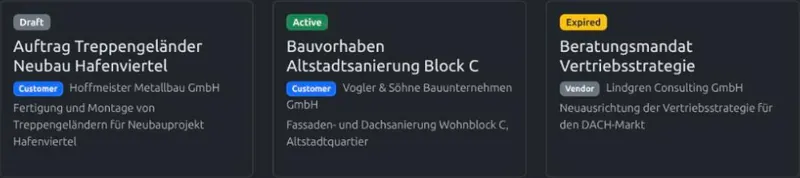
Use the toggle above the list to switch between Grid view (a card per contract) and List view (a compact table) — your choice is remembered the next time you visit the page.
In List view, click a column header to sort by that column; click it again to reverse the order.
Creating a contract
- Click Add contract at the top right of the Contracts page.
- Fill in the required fields:
- Name — a short descriptive title for the contract
- Partner — search for and select the partner this contract is with
- Start date and End date
- Total value and Currency
- Optionally add a Description and Tags.
- Set the initial status (usually Draft).
- Optionally expand Advanced options — see Advanced options below.
- Click Save.
Generating contracts from files Pro
Instead of filling in the form by hand, you can upload a file — such as a signed agreement or an invoice referencing it — and let SmoovOps read the contract details for you.
- Go to Contracts in the left sidebar and click + From File(s).
- Above the upload area, check or uncheck Keep document after generation to your liking — see Keeping or discarding the source document below. Your choice is remembered for next time.
- Drag and drop one or more files onto the upload area, or click Choose Files to browse. Any file type is accepted.
- Each file is processed in the background, the same way document uploads are — see Uploading and auto-processing documents for what the Pending/Processing/Processed/Needs Review/Failed statuses mean.
- Once a file is ready, click Generate Contract next to it (or click Generate all to work through every ready file one after another, with Save/Previous/Next controls at the top, just like reviewing documents).
If SmoovOps recognises the file as belonging to a contract you already have, it shows a suggestion: click Use this contract to link the document to the existing contract — its partner comes along automatically — instead of creating a duplicate. New contracts are only ever generated when you don't already have a matching one.
Otherwise, the review screen pre-fills a new contract's Name, Start Date, Total Value, and Currency from what was found in the file, ready for you to adjust before saving. Below the contract fields, a Partner section handles the partner side:
- If the document already has a partner linked — for example because you generated a partner from this same file first — it's shown already selected.
- Otherwise, if SmoovOps recognises the sender, it suggests one: click Use this partner to accept it.
- If neither applies, search for an existing partner, or click Create a new partner instead to fill in a small partner form right there (pre-filled the same way generating a partner from a file is), without leaving the Contracts page.
Saving links the document to the resulting contract and partner.
Starting from a specific contract: instead of the general Contracts list, you can also click + New Document on an existing contract's own detail view. This uploads and processes files the same way, but skips the suggestion step and any contract search entirely — every file you upload here is linked straight to that contract once processed, so it can never end up attached to the wrong one. Once every uploaded file has been handled (or if you cancel partway through), you're brought back to that same contract's detail view, where the newly linked document appears in its own documents table — see Documents linked to a contract below.
Keeping or discarding the source document Pro
By default, the file you uploaded to generate a contract stays afterwards as a document, linked to the new (or matched existing) contract, and can be found and further processed from the Documents page.
If you don't need it tracked as a document — for example if you're only using the file to quickly create a contract — uncheck Keep document after generation above the upload area before generating. With it unchecked, the source document and its uploaded file are deleted as soon as the contract has been generated, whether you created a new contract or linked to an existing one. Your choice is saved in your browser and shared with the same checkbox on the Partners + From File(s) page, since both generate from the same underlying documents.
Removing unwanted uploads Pro
If you uploaded the wrong file, or a document never finished processing, click Remove all next to Generate all on the imported-files list, then Confirm?. This clears every file still on the list — including ones stuck at Pending, Processing, or Failed, not just ones ready to generate a contract — deleting each document and its uploaded file along with it. It never affects a contract you've already generated from a previously-handled file.
Documents linked to a contract Pro
A contract's detail view also shows a read-only table of every document already linked to it — for example a signed agreement, an invoice, or anything else uploaded or generated through the flows above. It works like the Documents page's own list view (the same columns, search box, and pagination), just filtered to this one contract. Click a row to open that document. This is separate from Attached files below, which stores raw files rather than tracked Document records.
Editing and cancelling a contract
Open a contract and click Edit to change any field. To cancel a contract, change its status to Cancelled in the edit form.
Deleting a contract
Open a contract's detail view and click Delete. Before you can confirm, SmoovOps checks what's linked to the contract: its pending payments, documents, and notes/reminders.
-
If nothing is linked, you're simply asked to confirm.
-
If something is linked, a summary shows how many pending payments and notes/reminders are involved, plus how many documents are linked. Choose one:
- Also delete the pending payments and notes/reminders
- Keep them, just unlink from this contract
Documents are always kept and unlinked either way — deleting a contract never deletes a document; remove one yourself from the Documents page if you don't need it. Payments that are already settled (Succeeded or Refunded) are always kept too, regardless of your choice. Confirm? stays disabled until you've picked one of the two options.
Click Confirm? to finish, or Cancel to back out without deleting anything. Deleting a partner works the same way, scaled up to that partner's contracts — see Deleting a partner.
Advanced options
Every contract form has a collapsed Advanced options section. It's entirely optional — a contract with nothing filled in here behaves exactly as described above, with no automation attached. Expand it to configure a contract that renews on its own and bills on a recurring cycle:
| Field | What it does |
|---|---|
| Auto-renewal | Check this if the contract renews itself unless someone actively cancels it, rather than simply ending on its end date. |
| Renewal term (months) | How many months each renewal cycle lasts. Used together with Auto-renewal to work out when the next renewal decision falls due. |
| Notice period (days) | How many days before a renewal or payment is due you want to be reminded by email. Leave it blank and SmoovOps reminds you 3 days before by default. |
| Contract type | A category — Service, Framework agreement, License, or Lease — purely for your own organisation and filtering; it doesn't change how the contract behaves. |
| Billing cycle | How often this contract is paid: One-time, Monthly, Quarterly, Half-yearly, or Yearly. |
| Reminder emails | Who gets this contract's reminder emails — see Overriding reminder emails for one contract below. |
See Automatic reminders and payments below for what these fields actually trigger.
Overriding reminder emails for one contract
By default, a contract's reminder emails follow the account-wide setting an owner or admin configures on the Settings page (see Reminder emails). At the bottom of Advanced options, the Reminder emails field lets you override that for this one contract:
- Automatic (use account default) — follows the account-wide setting. This is the default for every contract.
- Don't send reminder emails for this contract — this contract's reminders never get emailed to anyone, no matter what the account default is.
- Send reminder emails to a specific person — choose one person from your team; this contract's reminder emails go only to them, regardless of the account default.
Everyone can see this field, but only an account Owner or Admin can change it by default — a regular User can only change it if an owner or admin has turned on Allow team members to override reminder emails per contract in Reminder emails Settings. Whatever this field is set to, the yellow reminder bell in the navigation bar still shows the reminder to everyone on the team.
Automatic reminders and payments
SmoovOps keeps you from having to remember every contract's renewal date and billing schedule yourself.
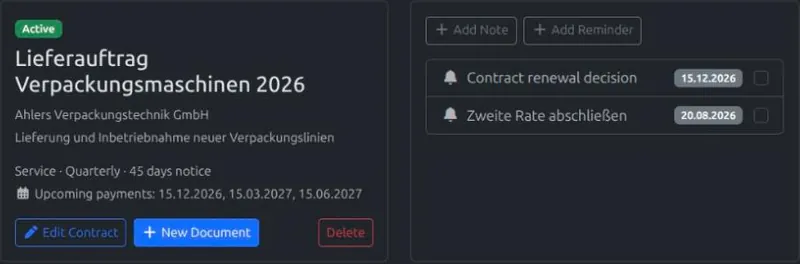
Every contract with an end date automatically gets one reminder for that end date, and every contract with a total value automatically gets one payment for that value — you don't need to create these by hand. They show up in the contract's own Notes/Reminders list and Payments list, and on the Notes and Payments pages, just like anything you create manually.
Payments are only created for the current month and the future — never for the past. If a contract was signed before the current month (for example when you import existing contracts), SmoovOps doesn't backfill the payments you've already missed: the first automatic payment is the next one due from the current month onward, following the contract's billing cycle. A one-time contract whose date lies before the current month gets no automatic payment at all. Record past payments by hand, or import them on the Payments page, if you need them in SmoovOps.
Contracts with Advanced options configured go further:
- If Auto-renewal and a Renewal term are set, marking the end-date reminder done automatically creates the next one — due date advanced by the renewal term — for as long as the contract stays Active and Auto-renewal stays checked. Turn off Auto-renewal, or cancel the contract, and no further reminder is created.
- If a Billing cycle other than One-time is set, SmoovOps automatically keeps future payments generated up to 12 months ahead of today — you don't need to mark anything Succeeded first. As each month passes, the buffer rolls forward to keep the next 12 months filled, for as long as the contract stays Active.
- SmoovOps also emails you when a reminder or payment is coming up, using the contract's Notice period as the lead time (or 3 days if you haven't set one). Once a contract is no longer Active, you stop being emailed about it, even if an open reminder or payment is still sitting there.
A contract's detail view shows a preview of the next upcoming renewal decision and the next few upcoming payments, computed from these settings, so you can see what's coming without waiting for the email.
Maximum number of contracts Free
The number of contracts you can create depends on your plan:
- Free plan — up to 20 contracts
- Starter Starter+ — up to 100 contracts
- Pro Pro — unlimited contracts
If you reach your plan's limit, upgrade to create more contracts.
Document templates
SmoovOps can generate ready-to-use documents from a contract. The templates available depend on your plan:
Termination notice Free
Available on all plans. Generates a formal termination notice for the contract. You fill in a few details and SmoovOps produces a ready-to-send document.
Contractual notice Free
Available on all plans, including Free. Generates a standard contractual notice for the partner, covering common scenarios such as change of terms or early renewal.
Offer and invoice templates Starter+
Available from the Starter plan. Generates a formal offer document and a matching invoice based on the contract details, ready for sending to your partner.
Custom templates Pro
Available on the Pro plan. Beyond the four templates above, add and edit as many document templates of your own as you like — no need to contact support. See Managing document templates.
Notes and reminders
Open a contract's detail view to keep notes and reminders about it — for example the reason it was renewed, or a reminder to check in before renewal. See the Notes & Reminders page for how notes and reminders work, including the Notes page that lists everything across all your partners, contracts, and payments in one place.
Attached files Starter+
On the Starter and Pro plans, you can upload files to any contract — for example the signed agreement, attachments, or correspondence.
Storage included by plan:
| Plan | Storage |
|---|---|
| Free | No file storage |
| Starter | 10 GB |
| Pro | 100 GB |
To attach a file, open a contract and use the Upload file button. Files you upload appear in the contract's file list and can be downloaded or deleted at any time.
See the Files page for more details.
Import & Export Free
On all plans, including Free, you can import contracts in bulk from a spreadsheet and export your full contracts list to CSV, Excel, or ODS format.
To import contracts:
- Click Import at the top of the Contracts page.
- Upload a CSV, Excel, or ODS file. The file must include a header row, with columns in this order: Name, Status, Partner, Start Date, End Date, Payment Amount, Currency, Description, Tags, Contract type, Billing cycle, Auto-renewal, Renewal term (months), Notice period (days).
- Review the preview and confirm.
Payment Amount is required in every row, just like in the contract form (0 is allowed). A row with an empty, non-numeric or negative amount is listed as an error in the preview and isn't imported.
If a row's Partner column matches the name of exactly one existing partner, the imported contract is linked to it automatically. If it matches none of your partners, or more than one, the contract is still imported but left without a partner link, and a warning lists which rows need linking by hand afterwards.
The last five columns are the same fields as the Advanced options section (see Advanced options above); leave any of them blank to skip. Reminder emails isn't part of import/export — it's an override tied to a specific team member, and needs to be set up per contract from the contract's own edit form.
Start Date drives the payment schedule, not the day you import. Payments follow the dates in the Start Date column — never today's date or the date you run the import — spaced out by the Billing cycle, keeping the same day-of-month. For example, this row:
| Start Date | Billing cycle | Payment Amount |
|---|---|---|
| 2026-11-01 | Quarterly | 500 |
generates payments dated 2026-11-01, 2027-02-01, 2027-05-01, and so on — even if you import the file months earlier, in September.
Importing contracts signed in the past only creates payments from the current month onward. Past payments are never backfilled. For example, if you import this row in September 2026:
| Start Date | Billing cycle | Payment Amount |
|---|---|---|
| 2025-01-15 | Monthly | 500 |
the first automatic payment is dated 2026-09-15, followed by 2026-10-15, 2026-11-15, and so on — nothing is created for January 2025 to August 2026. A Quarterly contract that started 2025-01-01 would get its first payment on 2026-10-01 (the next quarter due), and a One-time contract dated before September 2026 gets no payment. After the import, the summary message tells you how many contracts got a payment schedule, how many payments were created in total, and how many past one-time contracts got none.
To export contracts:
- Click Export at the top of the Contracts page.
- Choose CSV, Excel, or ODS and the file will download immediately.